Learning how to read a bar code sounds technical, but the basics are simple. A barcode is a number written in bars. You can get that number from the printed digits, with a phone or scanner, or by measuring the bars yourself.
This guide covers all three methods. It then follows one test barcode from bars to digits to check digits. It is written for people who make and print barcodes, so the troubleshooting focuses on labels you print yourself.
Quick note: The numbers in this guide are for learning only. Barcode images are not official product identifiers. Real retail and marketplace numbers come from GS1 or your local GS1 member organization.
A barcode can be read three ways: by reading the printed digits, by scanning it with a phone camera or handheld scanner, or by measuring the bars and spaces by eye. Digits are fastest, scanning suits data capture, and decoding by eye is mainly for learning and troubleshooting.
Pick the method that matches your goal. If you only need the number, read the digits. If you need the data in a system, scan it. If the digits are smudged, or you want to see how barcodes work, decode the bars.
A barcode stores a short piece of data, usually a number, as a pattern of dark bars and light spaces. The digits printed beneath it are a human-readable copy of that data. Scanners read the bars, while people can read the digits.
Barcodes come in two families:
This guide focuses on 1D barcodes, because most product and warehouse labels use them.
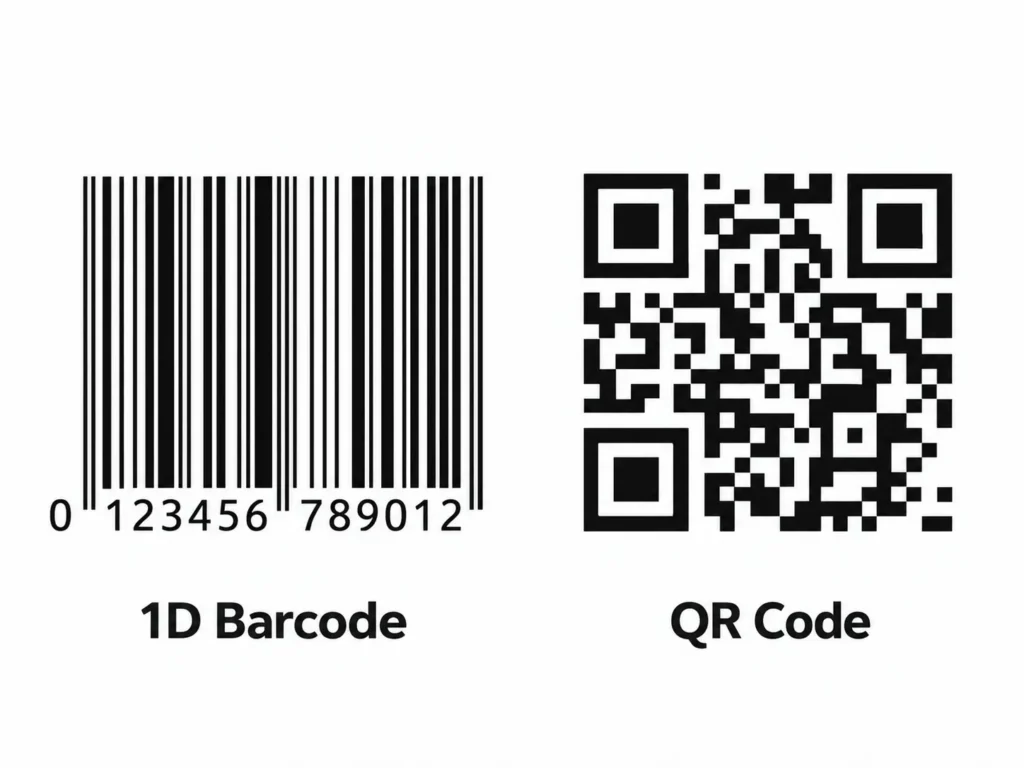
The barcode type decides how to read it. UPC-A has 12 digits and is common in the United States and Canada. EAN-13 has 13 digits and is used widely elsewhere, including the UK and Australia. Code 128 can hold letters and numbers and is common on warehouse and shipping labels.
|
Type |
What it holds |
Typical use |
|
UPC-A |
12 digits |
North American retail |
|
EAN-13 |
13 digits |
Retail in much of the world |
|
Code 128 |
Letters, numbers, symbols |
SKUs, inventory, logistics |
|
QR code |
Text, links, more |
Marketing, tracking |
Count the digits first. Twelve digits point to UPC-A. Thirteen point to EAN-13. A mix of letters and numbers usually means Code 128 or a similar format.
A UPC-A number becomes an EAN-13 when you add a leading zero. Both are GTINs (Global Trade Item Numbers). GS1 documentation on GTIN formats]
To make your own, try the Code 128 barcode generator or the EAN-13 barcode generator.
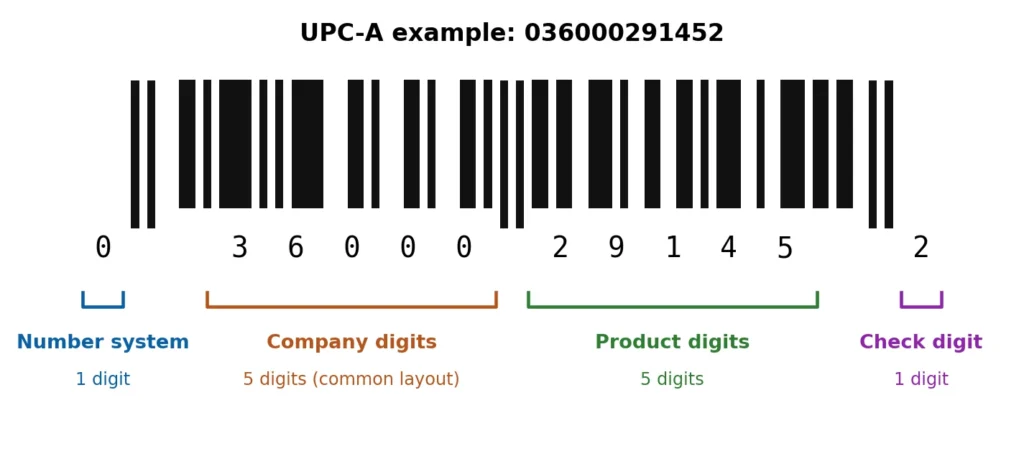
The numbers on a UPC-A barcode follow a set layout: one number system digit, then company digits, then item digits, then a final check digit. An EAN-13 uses 13 digits and begins with a GS1 prefix. The check digit is calculated from the other digits, so scanners can catch misreads.
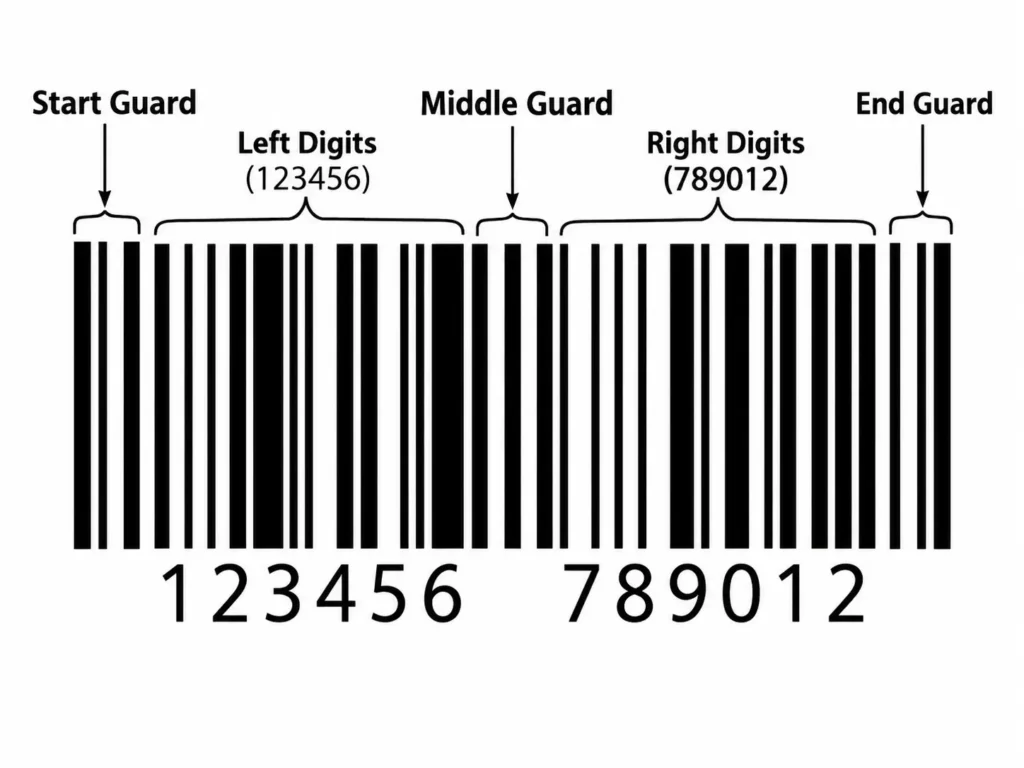
Our test number is 123456789012. It is a made-up value, so its parts don’t belong to a real company. Here is the split:
Treat this as a simple model, because company prefix lengths can vary. GS1 documentation on GS1 Company Prefix length
The first digit can matter. Standard retail products use digits such as 0 or 7. A 2 marks store-made labels for items sold by weight, and those labels can carry weight or price data. A 3 marks drug and health items. GS1 US documentation on UPC number system characters
An EAN-13 starts with a GS1 prefix. That prefix shows which GS1 member organization allocated the number. It does not show where the product was made. GS1 says the product may have been produced anywhere in the world.
The digits alone do not name a product. A store system matches the number to a product in its own database. To check who licensed a company prefix, use an official GS1 resource.GS1 member organization verification service
To read a barcode with a phone, open a camera or scanning app, fill the frame with the whole barcode, and hold steady in good light. Handheld scanners suit repeated work. Phones and scanners both return the digits, which you should compare against the printed number.
Support for 1D barcodes differs by phone, app, and system version, so test yours.
Many USB and Bluetooth scanners act like a keyboard and type the digits into whichever field is active. Scanner manufacturer documentation on keyboard emulation A scanner also needs the barcode type switched on in its settings. If it reads one type but not another, check that setting first.
An online barcode reader can decode a barcode from an uploaded image. Use a straight, sharp, high-resolution picture. Check the tool’s privacy notice before uploading anything private.
Upload a CSV or Excel file, map one column, and preview every row before exporting.
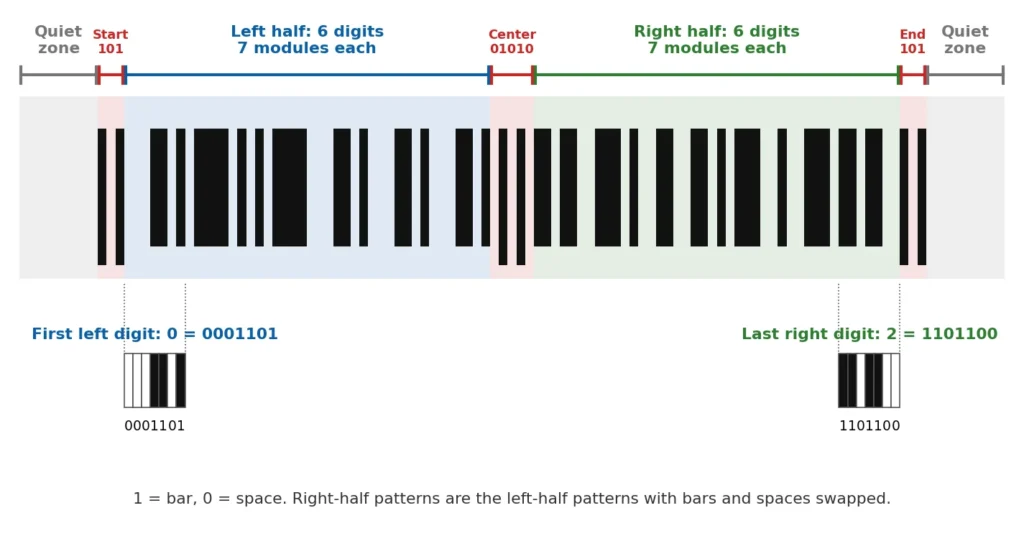
Reading a UPC-A barcode by eye means measuring each bar and space, then matching every group of seven narrow units to a digit. A UPC-A barcode has 95 units in total, including guard patterns at the start, middle, and end. The method suits learning and troubleshooting, not daily work.
GS1 General Specifications on UPC-A symbol structure
The basics
Think of the barcode as a row of tiny squares. Each square is called a module. A dark module is a 1. A light module is a 0.
A handy clue: left-side digits start with a light module. Right-side digits start with a dark one.
| Digit | Left side | Right side |
|---|---|---|
| 0 | 0001101 | 1110010 |
| 1 | 0011001 | 1100110 |
| 2 | 0010011 | 1101100 |
| 3 | 0111101 | 1000010 |
| 4 | 0100011 | 1011100 |
| 5 | 0110001 | 1001110 |
| 6 | 0101111 | 1010000 |
| 7 | 0111011 | 1000100 |
| 8 | 0110111 | 1001000 |
| 9 | 0001011 | 1110100 |
GS1 General Specifications table of UPC-A digit patterns
This table is for UPC-A. EAN-13 uses the same right-side patterns but adds a second set of left-side patterns, so do not use this table to decode an EAN-13 by eye. GS1 General Specifications on EAN-13 symbol structure
“Code 128 is the safe default for anything you made up yourself. Retail symbologies are for numbers somebody issued to you.”
— Rule of thumb for picking a symbology
Take our test barcode and remove the three guards. Twelve 7-module groups remain:
| Group | Side | Digit |
|---|---|---|
| 0011001 | Left | 1 |
| 0010011 | Left | 2 |
| 0111101 | Left | 3 |
| 0100011 | Left | 4 |
| 0110001 | Left | 5 |
| 0101111 | Left | 6 |
| 1000100 | Right | 7 |
| 1001000 | Right | 8 |
| 1110100 | Right | 9 |
| 1110010 | Right | 0 |
| 1100110 | Right | 1 |
| 1101100 | Right | 2 |
Reading down gives 1-2-3-4-5-6-7-8-9-0-1-2. Try the first row yourself. 0011001 is two light modules, two dark, two light, then one dark. That is the left-side pattern for 1.
A good tool will suggest a mapping from your header row, but you should always confirm it before generating. An auto-guess that picks the wrong column produces a batch that looks fine and encodes the wrong data.
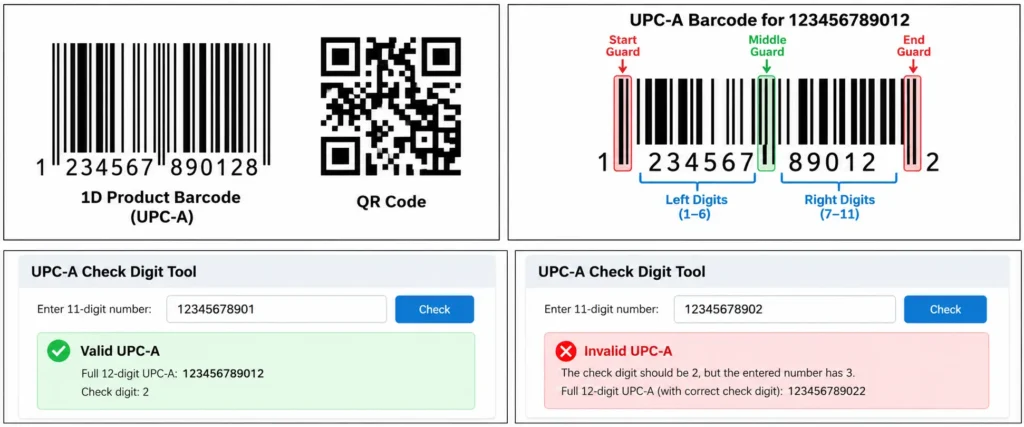
A UPC-A check digit is the 12th digit, calculated from the first 11 digits with a modulo 10 formula. Recalculating it and comparing the result to the printed digit shows whether the number was read or typed correctly. GS1 publishes the same method for all GTIN formats.
Using 123456789012:
A match means the number is structurally valid. It does not prove the barcode is genuine.
You can confirm the math with a tool. The UPC-A barcode generator calculates the check digit from 11 digits and validates 12-digit values. Change the last digit and the row should be flagged as an error. GS1 also offers a free check digit calculator.
Each method fits a different job. Use this table to choose.
| Situation | Best method | Main risk |
|---|---|---|
| Clean barcode, you only need the number | Read the printed digits | Misreading a digit. The check digit can catch it |
| Quick one-off check | Phone camera or scanning app | Poor light, glare, uneven app support |
| Many labels or data entry | Handheld scanner | Scanner not set to read that barcode type |
| Smudged digits, or you want to learn | Decode the bars by eye | Slow and easy to miscount |
| QR or other 2D code | Phone camera or 2D-capable scanner | Not practical to read by eye |
| Checking a batch of printed labels | Read-back test with your real scanner | Testing with a better device than you use on the job |
Paste or upload, validate every row, then export SVG, PNG, ZIP or a PDF label sheet.
A barcode can fail to read because of print or setup problems, and sometimes because the number or check digit is wrong. Common causes include low contrast, a barcode that is too small or stretched, a cropped quiet zone, blurry printing, glare, and a scanner not set to read that barcode type.
The quiet zone is the blank margin around a barcode. Scanners need it to find where the bars start and stop. GS1 General Specifications on quiet zone requirements
If you need a different layout, the barcode label generator offers sheet and thermal label layouts, including custom rows and columns.
A read-back test means scanning your printed labels with the device you will use in real work, then comparing each result with your source data. It catches print and data problems before a full run.
A successful scan shows that a pattern decoded into a number. It does not prove a product is genuine, that a seller owns the number, where the product was made, or in most cases what it costs. Official retail numbers come from GS1 or your local GS1 member organization.
Our tools create barcode images from values you provide. They do not issue official UPC, EAN, GTIN, or GS1 numbers. Random or test numbers should never be used as real retail or marketplace identifiers. Marketplaces set their own product ID rules, so check the current requirements before you list. Current marketplace documentation on product identifier requirements
Now that you know how to read a bar code, put it to work. Paste your values or upload a CSV or Excel file with Bulk Barcode Generator, review every row, and export PNG, SVG, ZIP, or PDF labels. Then run the read-back test before you print.
Upload a CSV or Excel file, map your barcode column, and preview every row before you export a single file.
Free · no signup · browser-side
Usually not. A standard retail barcode holds an identifier number, and the store’s system links that number to a price. Some in-store or variable-weight labels can include price data, so check how your own labels are set up.
Excel may strip leading zeros when a column is stored as numbers. Format the barcode column as Text before entering values, then check the leading digits again before generating or printing.
Printed digits are meant to match the encoded data, but a mislabeled or edited label can differ. Code 128 text is optional and can be formatted differently. Scan the barcode to confirm what it really holds.
Not in practice. QR codes pack data in a grid with extra error correction, so use a phone camera or a 2D-capable scanner instead.
Ready when you are
Paste your codes or upload a CSV/Excel file, validate every row, and export PNG, SVG, ZIP or print-ready PDF labels — free, with no signup.